Writerphernalia home

Storyphernalia Plan on a board, write on the page.

A calm writing app for books, stories and essays. Lay your story out as cards you can move around, then open any card to write on a clean, quiet page. Your work stays on your own device, with no account and no AI.

  • Free while in early access
  • Nothing to sign up for
  • Comes with a sample story to explore
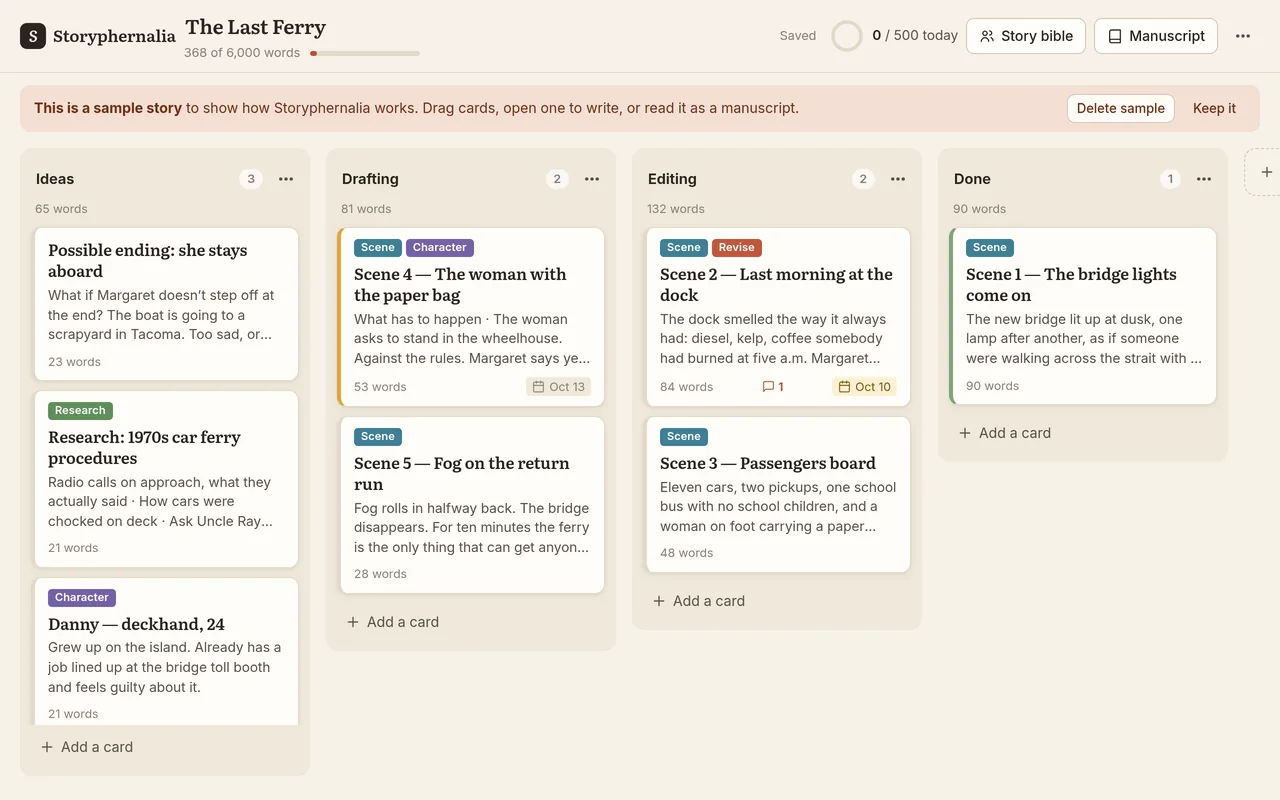
Storyphernalia on a computer: a board for the sample story The Last Ferry, with cards in Ideas, Drafting, Editing and Done
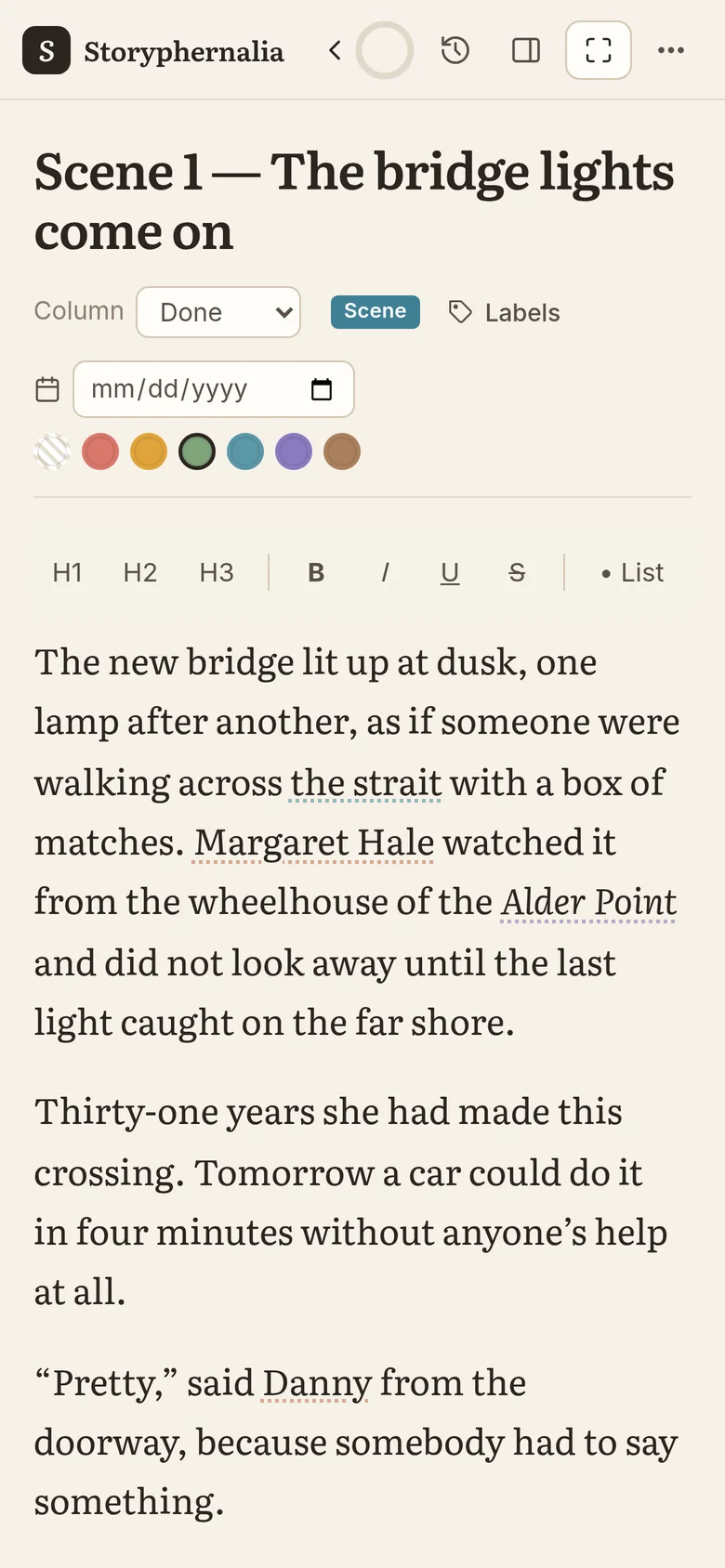
Storyphernalia on a phone: Scene 1 of The Last Ferry open on the writing page
How it works

Everything a long piece of writing needs, in one calm place

Storyphernalia keeps the big picture and the sentence in front of you side by side. You move between them with a click.

See the whole story at a glance

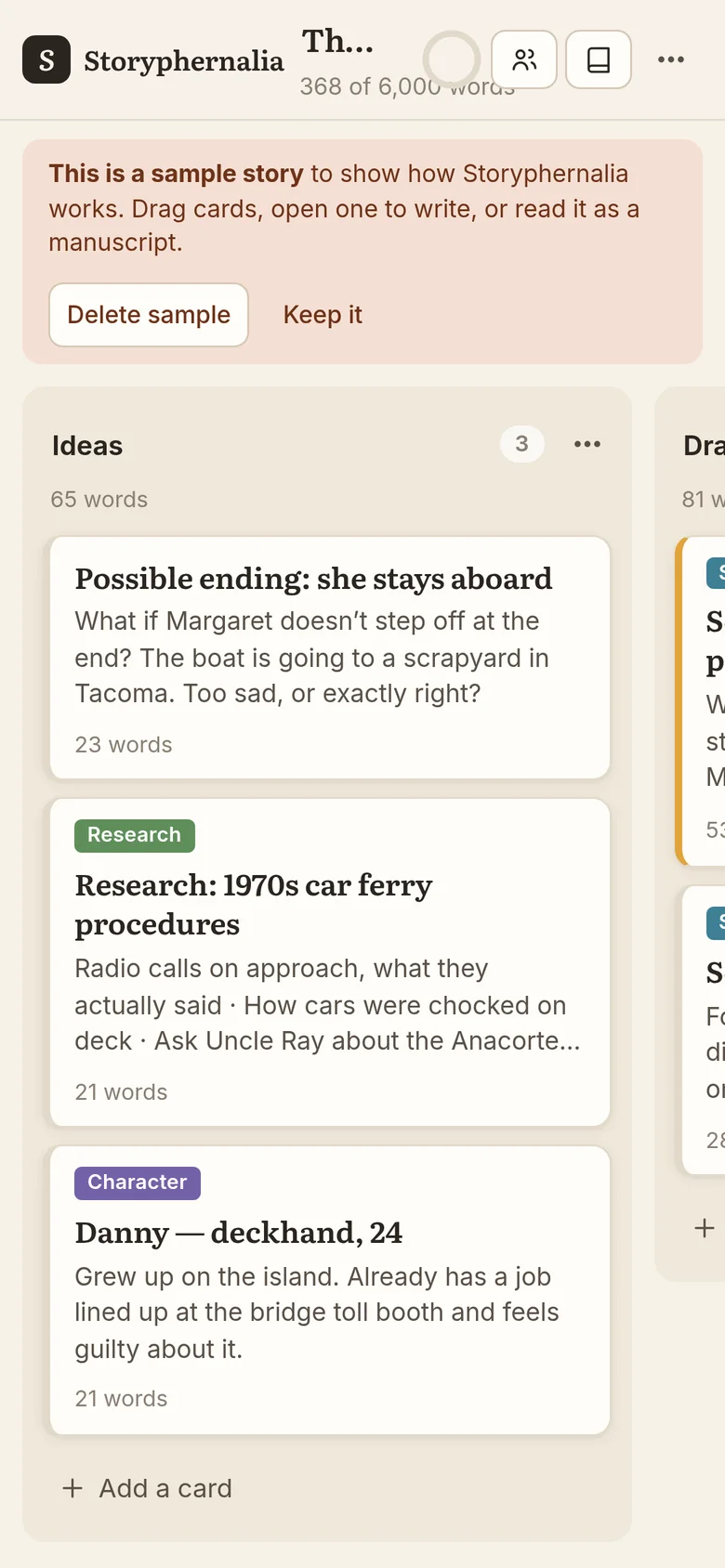
Each project gets its own board, with columns for Ideas, Drafting, Editing and Done. Every scene, chapter or post is a card that shows its title, a short preview and its word count. Rename the columns, add your own and color them.

  • Drag cards with a mouse, a finger or the keyboard
  • Labels, colors and due dates that turn amber when close and red when late
  • A word target and progress bar for each book or story
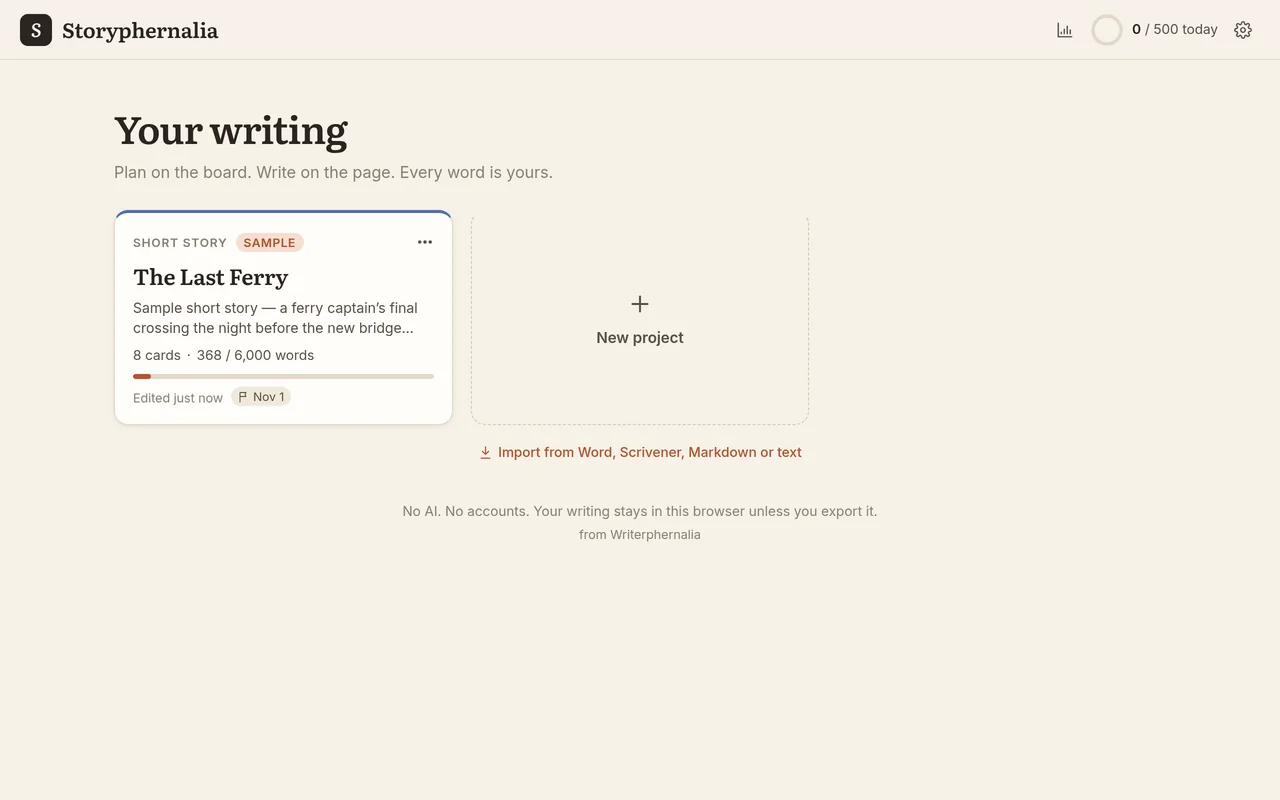
Your writing: the list of projects, with The Last Ferry at 368 of 6,000 words
The board on a phone, showing the Ideas column with cards for an ending, research and a character

Write on a quiet page

Open a card and you’re on a clean page set in Literata, a typeface made for long reading. Headings, bold and italic, lists, quotes and scene breaks are a click away, and smart quotes and dashes appear as you type. It saves every time you pause.

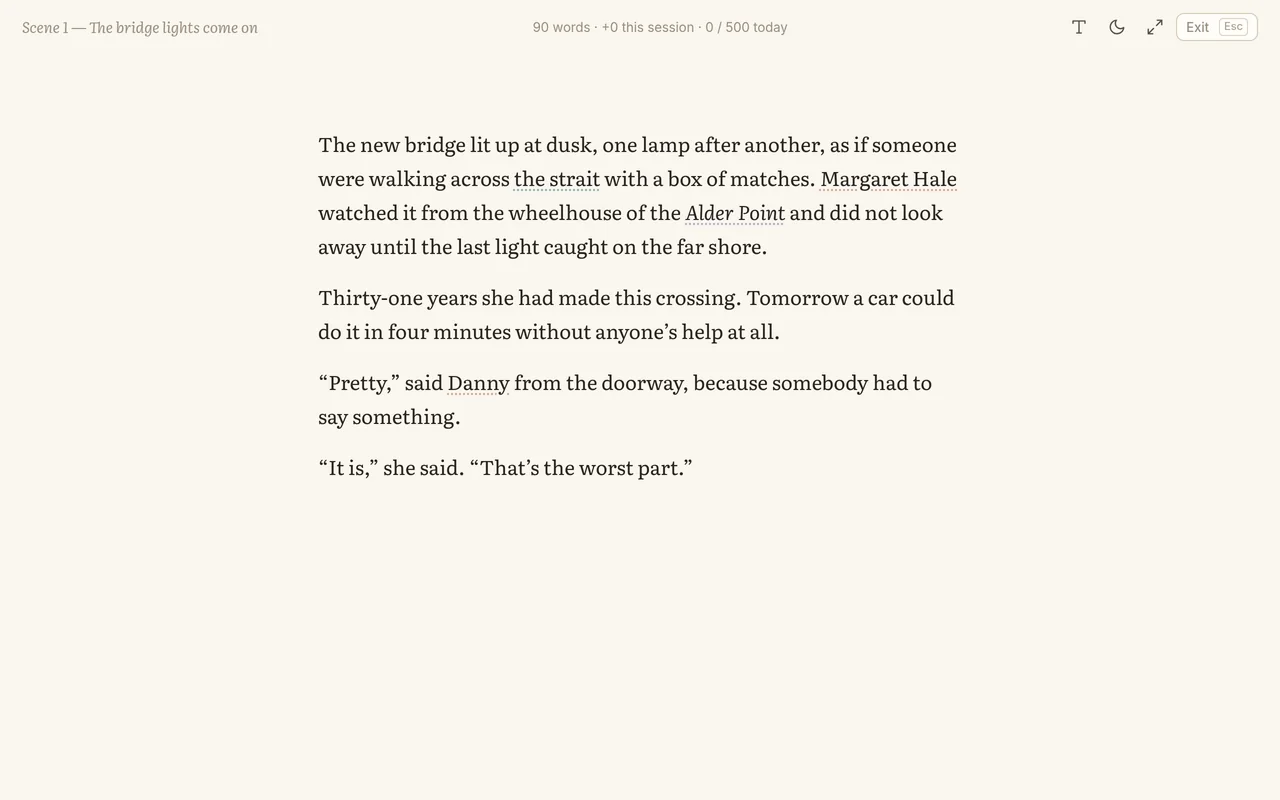
  • Focus mode hides everything but your words, in paper or night tones
  • Optional typewriter scrolling keeps your line near the middle of the screen
  • A daily word goal ring, set to 500 words to start and easy to change
Focus mode: a large serif page with nothing else on screen but a faint word count

Keep your characters and places straight

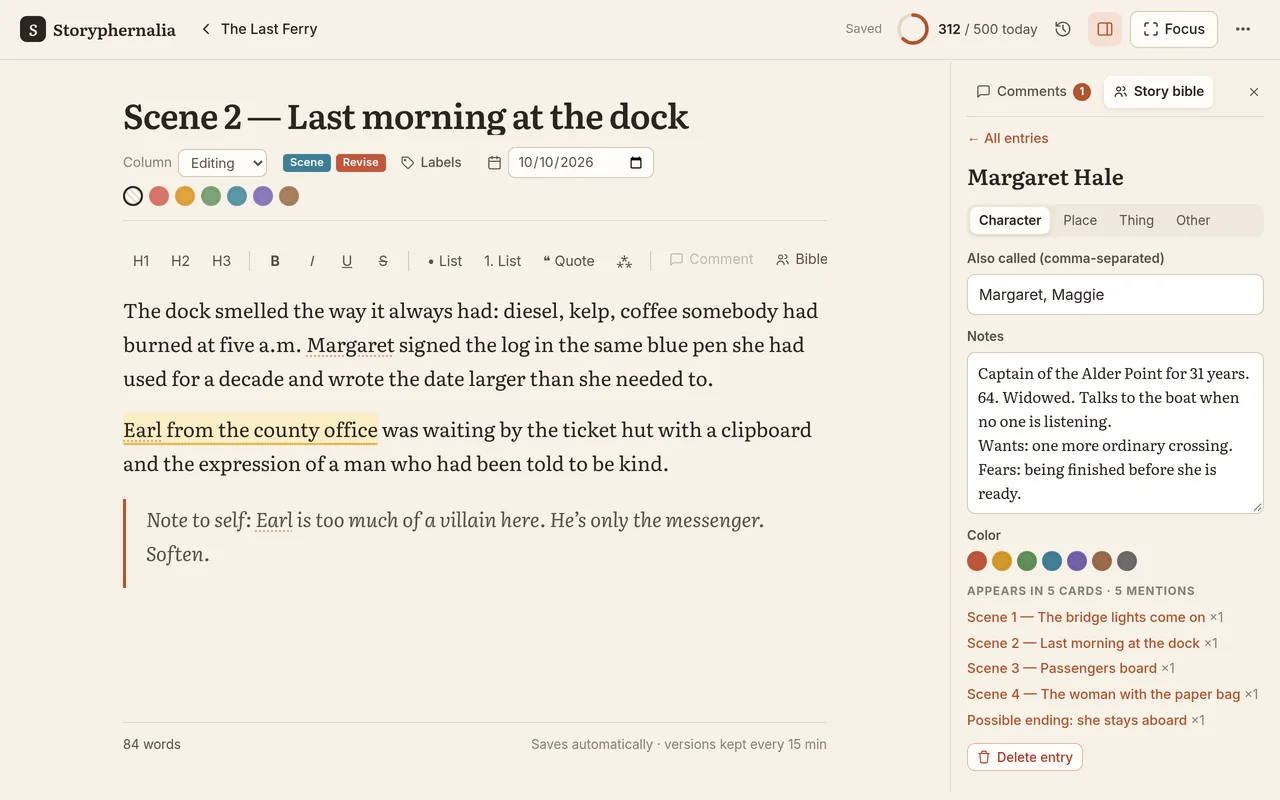
Every project has a story bible for characters, places, things and notes. Give an entry its other names, like “Margaret, Maggie,” and Storyphernalia finds them in your writing and gives them a soft underline. Ctrl-click or ⌘-click a name to open its notes right beside the page.

  • Each entry lists every card it appears in
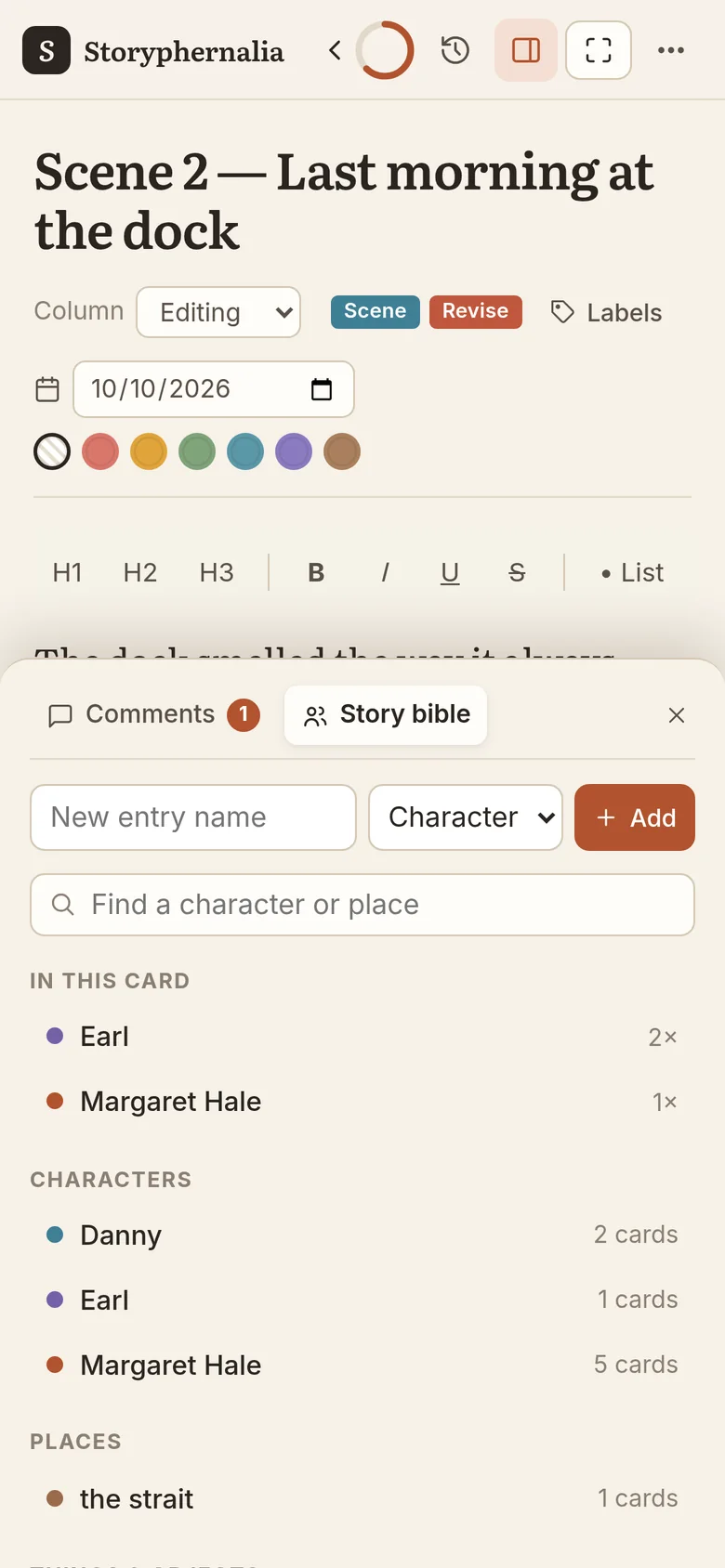
  • An “In this card” list shows who and what is in the scene you’re writing
  • Scrivener character and place folders become bible entries when you import
The story bible beside a scene: notes on Margaret Hale and the five cards she appears in
The story bible drawer on a phone, listing who is in this card

Revise without fear

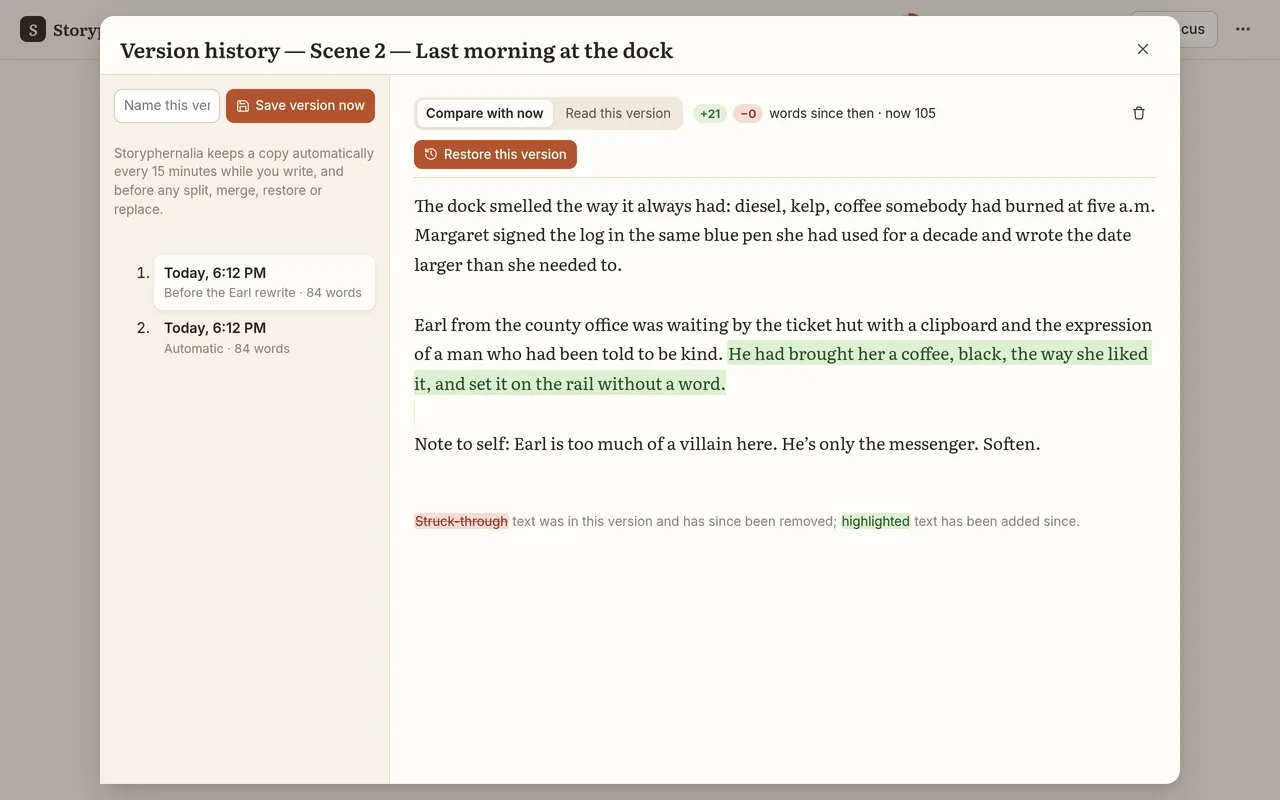
Storyphernalia keeps a copy of each card every 15 minutes while you write, and before any big change. Name a version you want to keep, compare any version with today’s text word by word, and restore it with one click. Restoring saves the current text first, so nothing is lost.

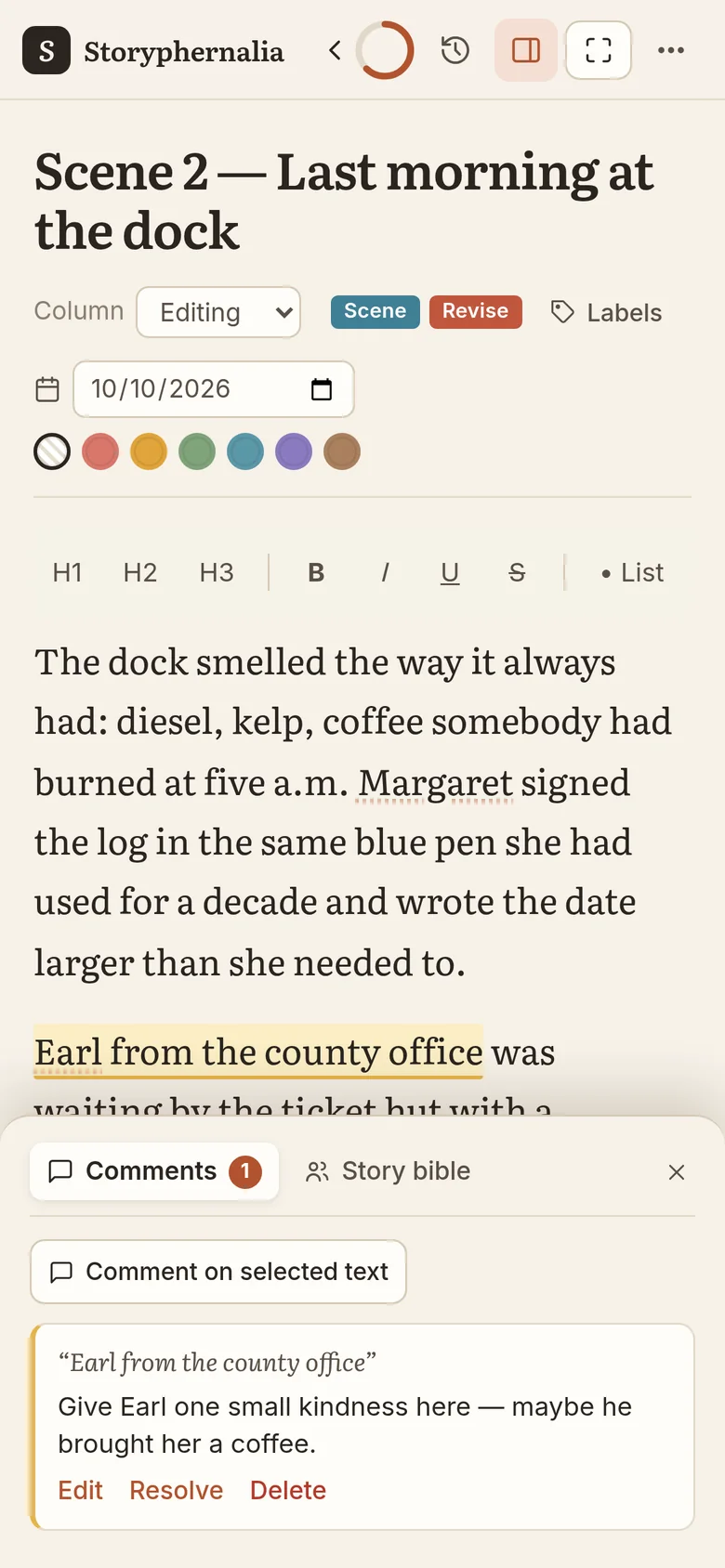
  • Private comments pinned to a phrase, never included when you export
  • Split a card at the cursor, or merge it with the next one
  • Find and replace across a whole project, with each changed card saved to its history first
Version history comparing an earlier version with now: the added sentence is highlighted in green
A private comment pinned to a phrase, shown in a drawer on a phone

From first draft to finished manuscript

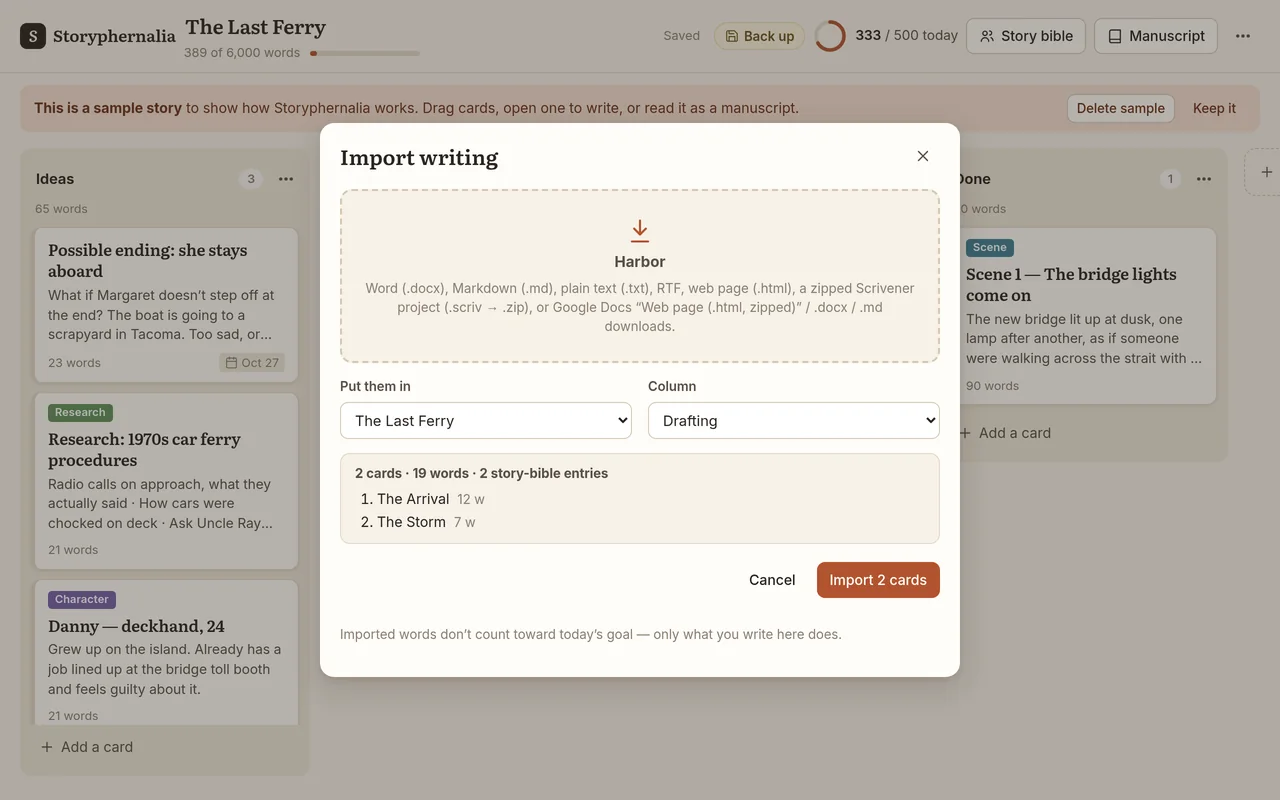
Bring your work in from Word, Scrivener, Google Docs, Markdown, plain text, RTF or web pages. Storyphernalia can split a document into cards at its headings or scene breaks, and shows you a preview first.

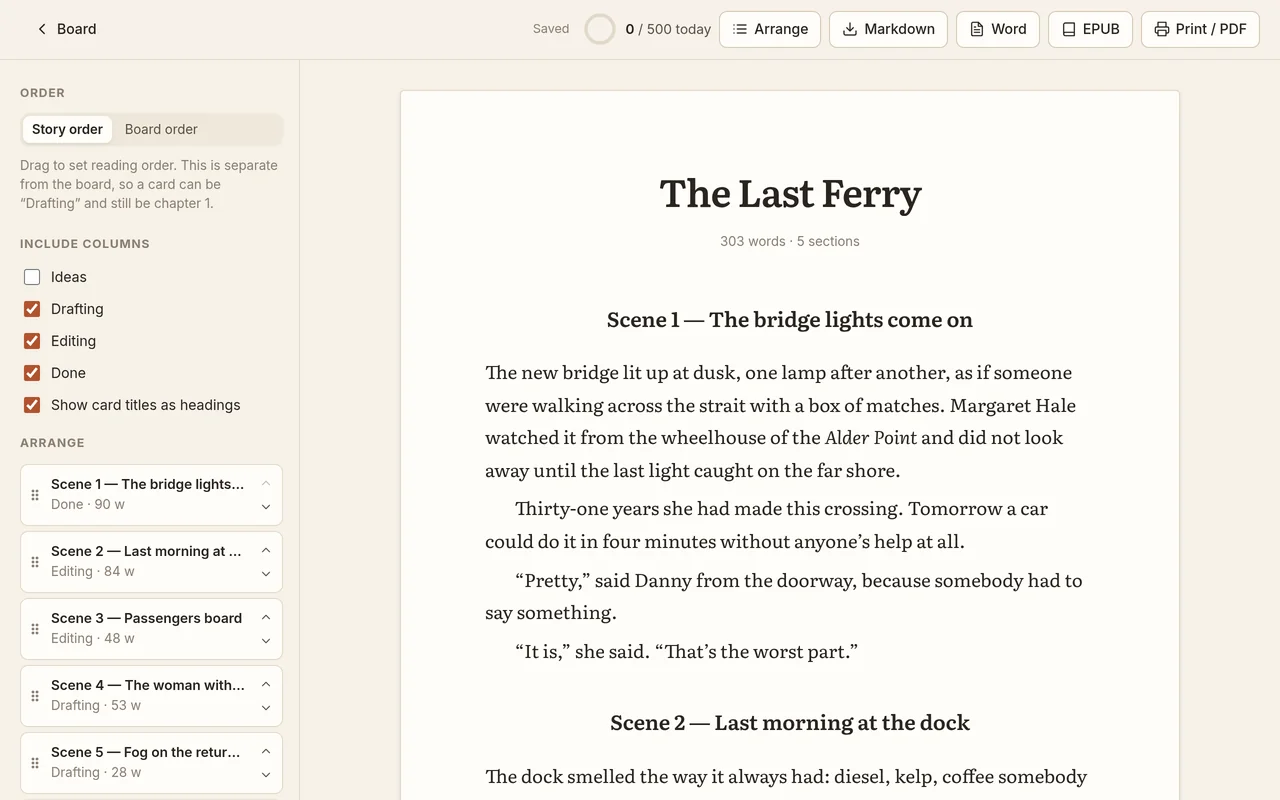
When you’re ready, the manuscript view joins your cards into one continuous document. Story order is separate from the board, so a scene can sit in Drafting and still be chapter one.

  • Word, in standard manuscript format: Times 12 pt, double-spaced, with a title page
  • EPUB e-book with a table of contents
  • PDF through Print, and Markdown
The manuscript view: The Last Ferry as one document, with story order on the left and export buttons for Markdown, Word, EPUB and PDF
The import window with a Scrivener project loaded, previewing two cards and two story bible entries

Deadlines, goals and a record of your work

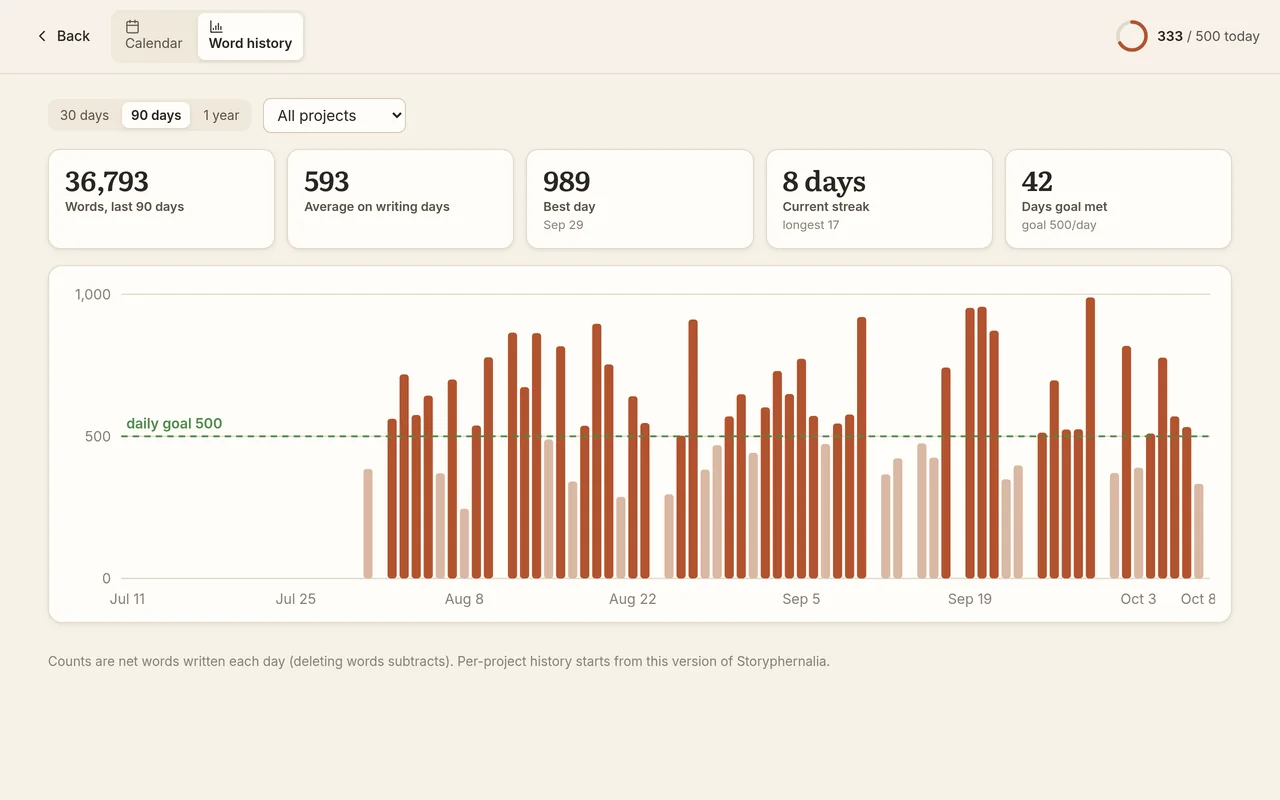
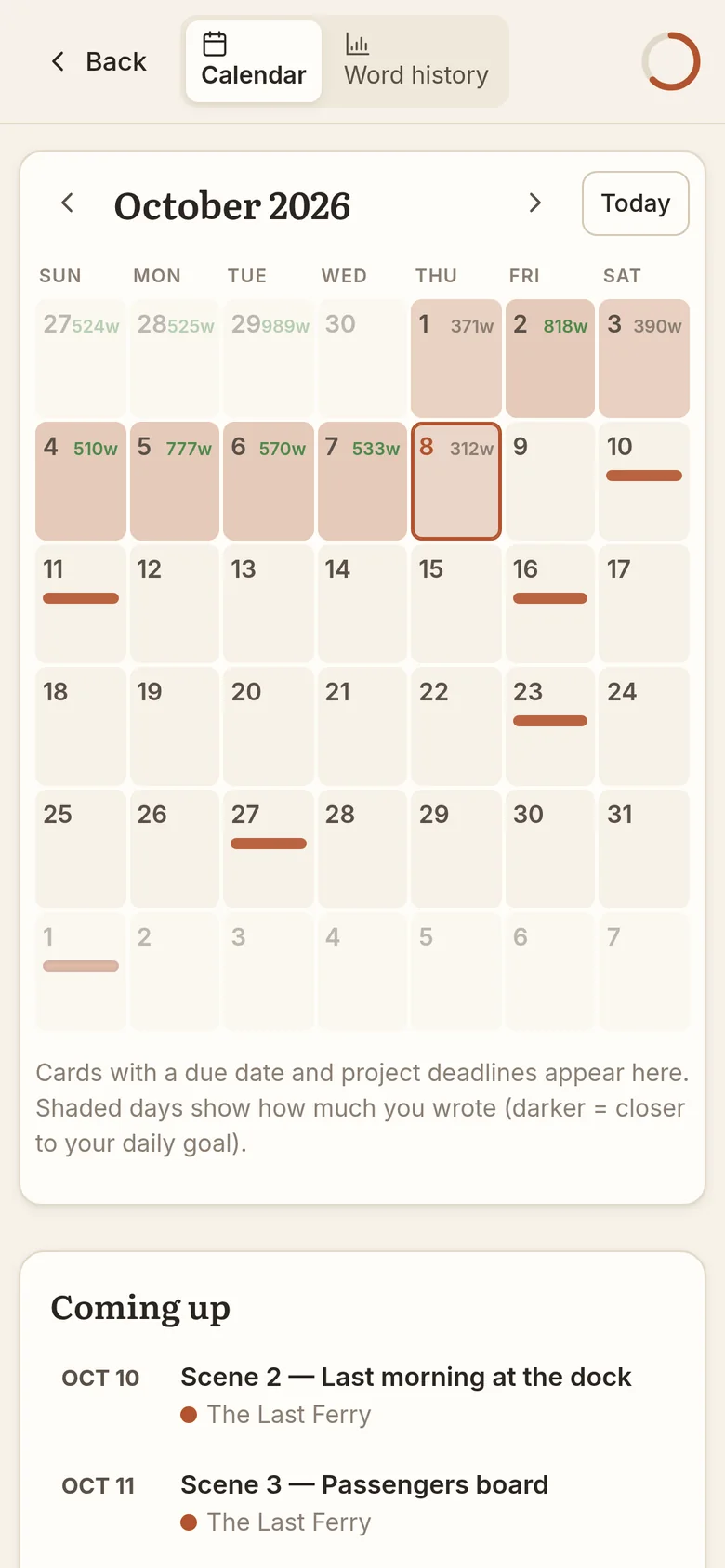
A month calendar shows card due dates and project deadlines, colored by project, with a “Coming up” list beside it. Each day is shaded by how much you wrote.

  • Word history for the last 30, 90 or 365 days
  • Your total, daily average, best day and streaks, with a goal line on the chart
  • Give each project a deadline and its own color
Word history for 90 days: totals, average, best day and streak above a bar chart with a daily goal line
The deadline calendar on a phone, with days shaded by words written
Contents

What’s inside

  • Board and cardsColumns, labels, colors, due dates and word counts.
  • A clean editorHeadings, lists, quotes, scene breaks and smart punctuation.
  • Focus modeJust the page, in paper or night tones, with optional full screen.
  • Typewriter scrollingKeeps the line you’re typing near the middle.
  • Version historyAutomatic and named versions, compared word by word.
  • CommentsPrivate notes pinned to a phrase.
  • Story bibleCharacters, places and things, found in your text.
  • Split and mergeCut a card in two, or join it to the next.
  • Find and replaceAcross a whole project, with a safety copy first.
  • ImportWord, Scrivener, Google Docs, Markdown, text, RTF, HTML.
  • ExportEPUB, Word manuscript, PDF and Markdown.
  • Calendar and goalsDeadlines, a daily goal and word history.
Private by design

Your words stay with you

Your manuscript is yours. Storyphernalia keeps it on your own device and never sends it anywhere.

On your device

Projects are saved in your browser on your own computer, tablet or phone. They’re never uploaded.

No account

Nothing to sign up for and no password to remember. Open it and start writing.

No AI

Every word comes from you. Nothing reads, suggests or rewrites your work.

Works offline

After the first visit it opens and saves without the internet. There’s no tracking, here or in the app.

Backups that look after themselves

Because your writing lives on your device, Storyphernalia works hard to keep it safe.

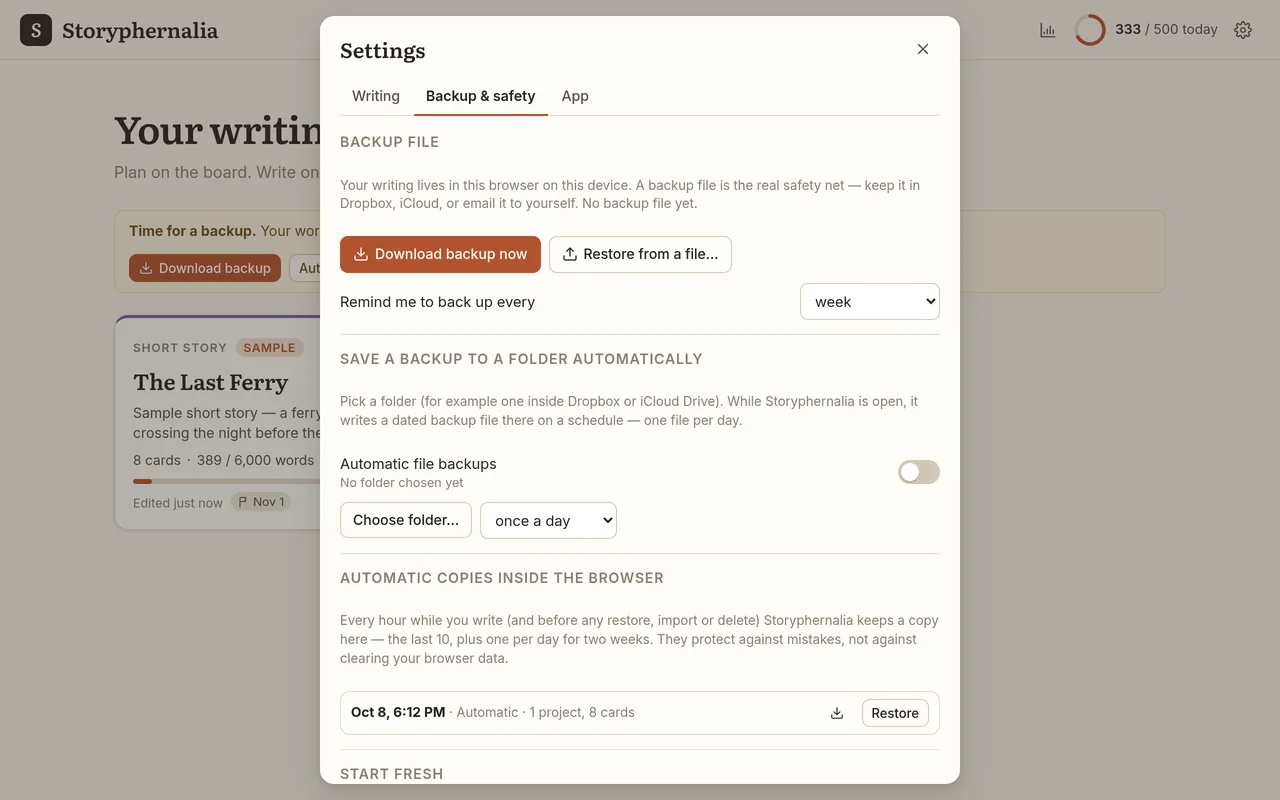
  • Automatic copies inside the browser, every hour while you work and before any restore, import or delete
  • A gentle reminder to download a backup, on a schedule you choose
  • On a computer with Chrome or Edge, a scheduled backup into a folder you pick, such as one inside Dropbox or iCloud Drive
  • One backup file holds everything, version history included
Backup and safety settings: download a backup, a reminder schedule, automatic folder backups and the automatic copies kept in the browser
Install

Install it like an app

Storyphernalia runs in your web browser, so there’s no app store and nothing to download. Install it and it opens in its own window, even without the internet.

Computer

  1. Open storyphernalia.pages.dev in Chrome or Edge.
  2. Click the Install button on the home screen, or the install icon at the right end of the address bar.
  3. Storyphernalia opens in its own window, alongside your other apps.

On a Mac with Safari, choose File, then Add to Dock.

iPhone or iPad

  1. Open storyphernalia.pages.dev in Safari.
  2. Tap the Share button, the square with an arrow pointing up.
  3. Choose Add to Home Screen, then tap Add.

Android

  1. Open storyphernalia.pages.dev in Chrome.
  2. Tap the ⋮ menu in the top corner.
  3. Choose Install app or Add to Home screen.

Each computer or phone keeps its own projects. A backup file is how you move your writing from one to another.

Early access

$29.99, one time. No subscription.

Free while in early access. Purchases open soon.

Try it free

Try it free today. No account and no card details needed.

Questions

Good questions, plain answers

Is it private?

Yes. Your projects are stored only in your browser, on your own device. Nothing you write is uploaded, and there’s no account, no analytics and no advertising. Comments you leave for yourself are never included when you export.

Does it work offline?

Yes. After your first visit, Storyphernalia opens and saves without an internet connection. Install it and it opens in its own window like any other app. When an update is ready, a small banner lets you reload to get it.

What happens if I get a new phone or computer?

Your writing lives on the device you write on, so it won’t move over by itself. Before you switch, open Settings, go to Backup & safety, and choose Download backup now. That saves one file with all your projects, version history included.

On the new device, open Storyphernalia, go to the same place, choose Restore from a file, and pick that file. If you’ve set up automatic backups to a folder in Dropbox or iCloud Drive, the latest file will already be waiting there.

Is there AI?

No. Every word comes from you. Nothing reads your work, suggests sentences or writes for you.

How much will it cost?

Storyphernalia will be $29.99, one time, with no subscription. It’s free while in early access, and purchases open soon. You don’t need an account or a card to try it.

Can I bring in my Scrivener project or Word files?

Yes. Storyphernalia imports Word files, zipped Scrivener projects (keeping the order of your Draft folder), Google Docs downloads, Markdown, plain text, RTF and web pages. You see a preview before anything is added, and you can put the result in a new project or an existing one.

Wasn’t this called Longhand?

Yes, Storyphernalia used to be called Longhand. If you wrote at longhand-writer.pages.dev, open it there once. A banner will download a full backup and open the new address, so you can bring everything across. Nothing at the old address is deleted.

Your story has a place to live.

Open Storyphernalia, look around the sample story, then start your own.

Try it free